
The complete guide
How to Choose a 1080p Webcam with Auto Framing
The problem with the camera you already have
Most of us never chose our webcam. It came glued into the top bezel of a laptop, and it was specified to cost almost nothing. The result is a picture that looks flat in daylight, grainy at night, and locked into a crop so tight that leaning back makes your forehead disappear.
That matters more than it used to. Interviews, client calls, training sessions, streams and recorded walkthroughs all happen on camera now. People form an opinion about how organised you are from a two second glance at your video tile. A soft, dim, badly framed shot quietly works against you, even when what you are saying is good.
A dedicated USB camera fixes most of that. A 1080p webcam with auto framing goes further, because it solves the one thing you cannot fix with better lighting: the fact that you move and the camera does not.
How auto framing works
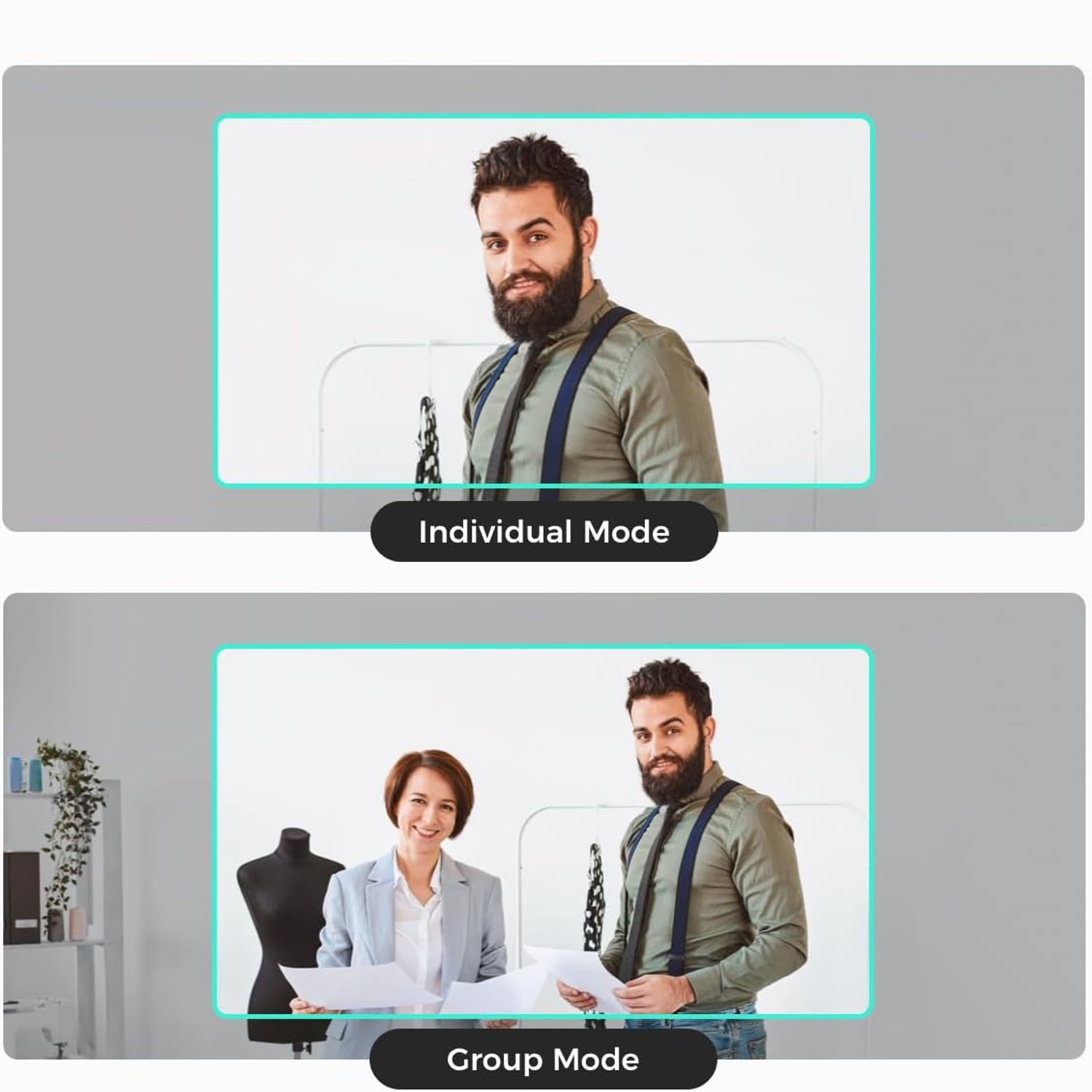
AI framing is not magic, and it is useful to know what it is doing. The camera analyses the scene and identifies people in it. Then it chooses a crop inside the sensor's full field of view that places those people well in the frame, and it updates that crop as they move. When you shift to one side, the crop slides with you. When a second person leans in, group mode widens out so nobody is cut in half.
Because the crop happens inside a wider sensor view, you keep a usable image while the camera adjusts. The movement is smoothed rather than snapping, so viewers see a gentle reframe instead of a jolt.
The OBSBOT Meet SE pairs this with 4x digital zoom. Digital zoom crops further into the sensor, so there is a limit before softness shows. In practice, a modest step tighter for a head and shoulders shot looks clean, while pushing to the maximum is better reserved for situations where showing detail matters more than absolute sharpness.
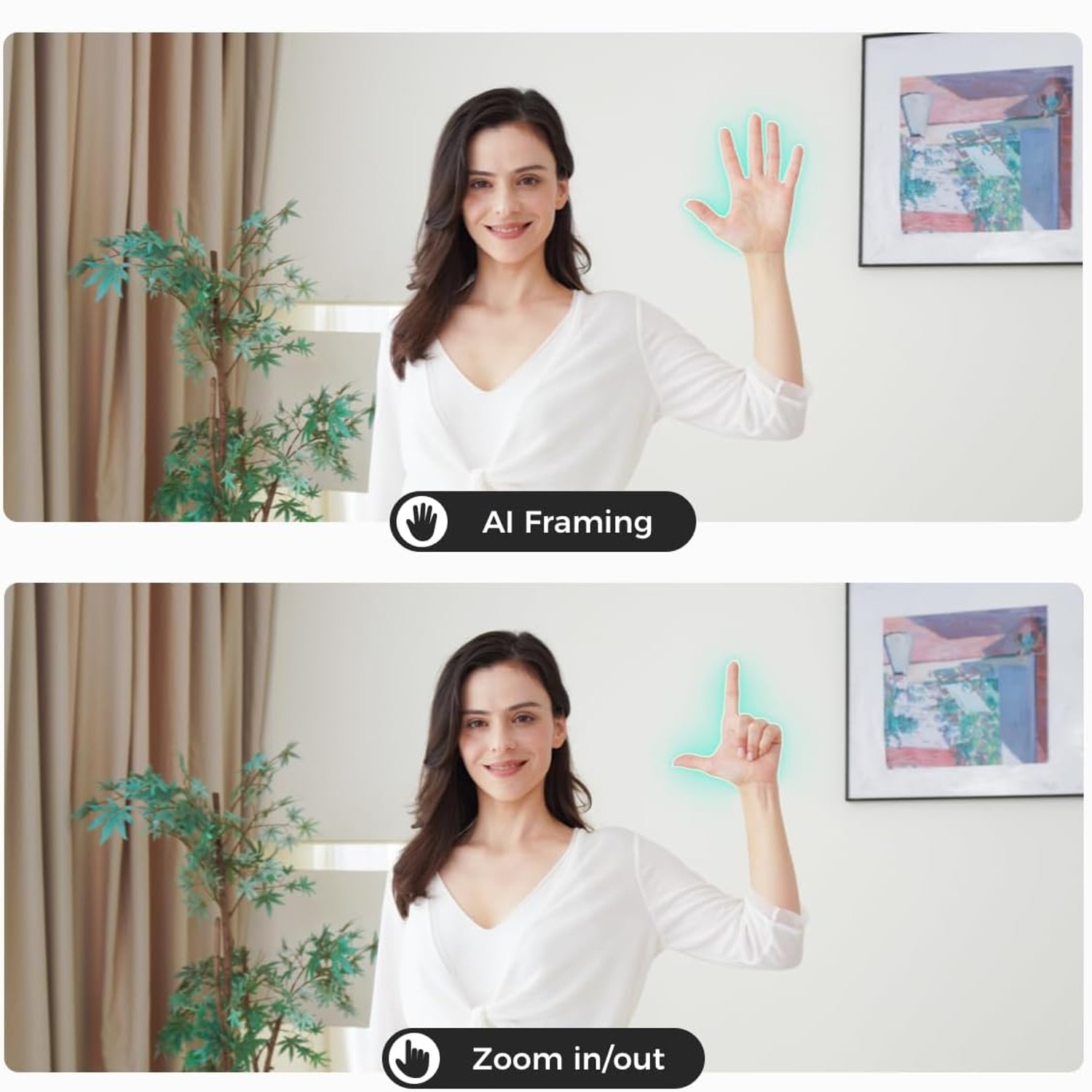
Gesture control sits on top of all this. You raise a hand in front of the lens to switch framing on or off, or to step the zoom. It sounds like a gimmick until you are presenting and realise you do not have to minimise your slides to find a settings panel. For anyone hunting the best gesture control webcam, that is the practical benefit: fewer interruptions in the middle of a sentence.
Frame rate, and why 100fps is on the box
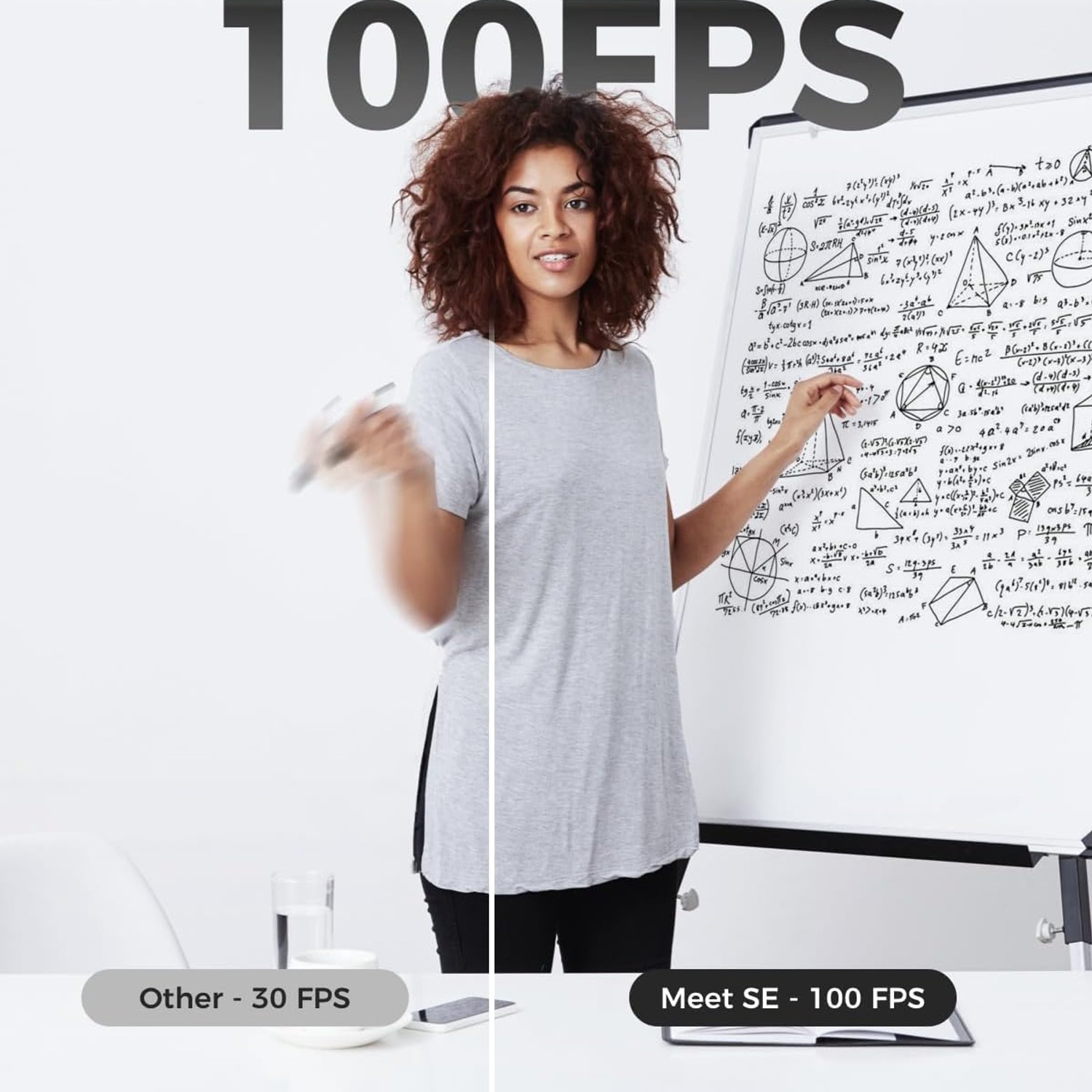
Resolution gets all the attention, but frame rate decides whether motion looks natural. Standard webcams usually run 30fps. That is fine for a still talking head and noticeably choppy the moment you gesture, move an object in your hands, or pan a laptop around a room.
This model captures 1080p at up to 100fps. The extra frames fill in the gaps between positions, so a waving hand reads as a smooth arc rather than a stack of blurred stills. If you stream, demonstrate crafts or tools, teach technique, or play games on camera, that is the single most visible upgrade over a basic office camera. If you only ever sit still and talk, the benefit is smaller, though the picture still looks cleaner.
Keep in mind your software and your upload speed also have a say. A conferencing platform may send a lower frame rate over the network regardless of what the camera produces. Recording locally or streaming with capable software is where high frame rate capture really shows.
Light is still the biggest factor
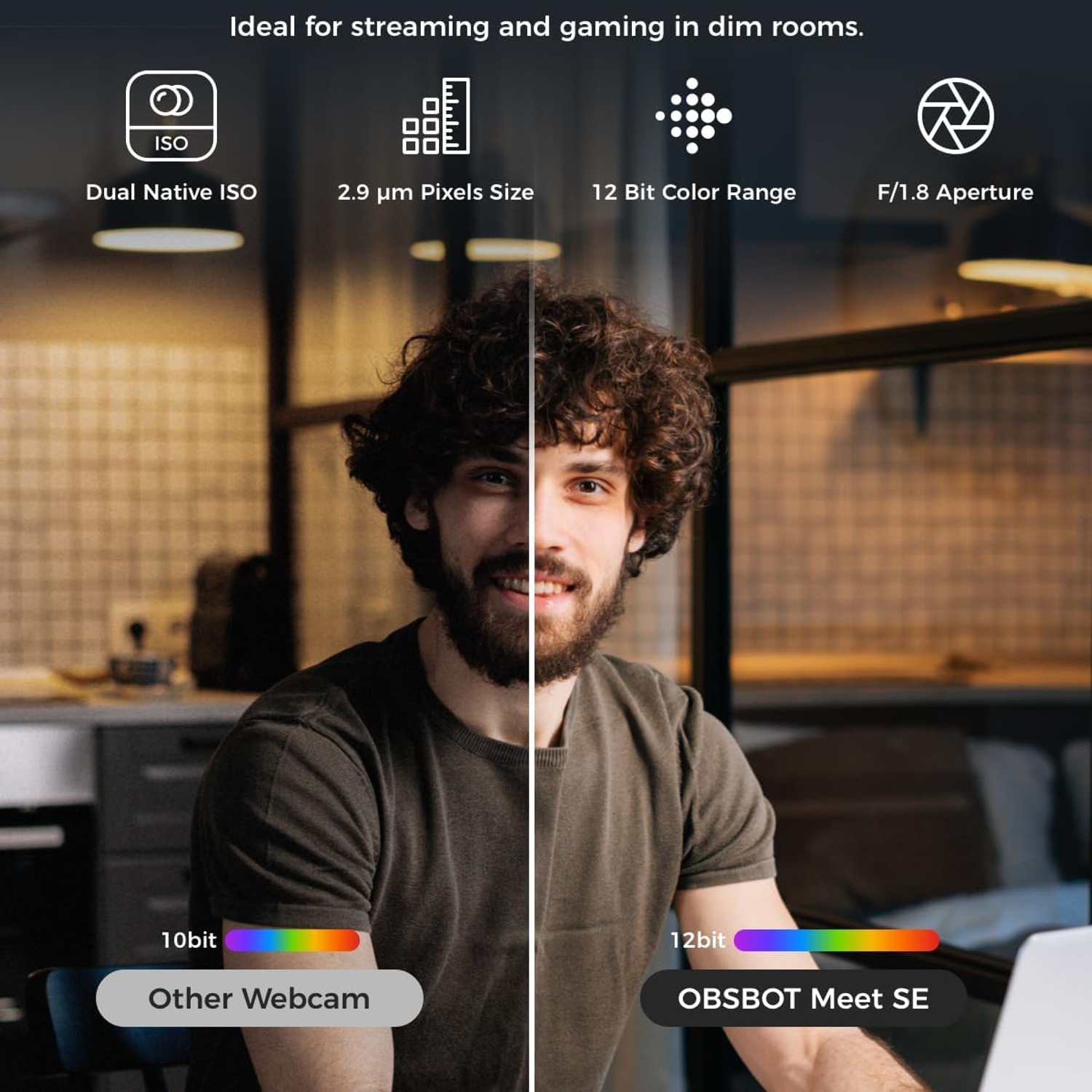
The Meet SE uses a CMOS sensor with digital image stabilisation and both automatic and manual exposure control. Those features help a lot in an average room. They still cannot invent light that is not there.
If you want the biggest improvement for the least money, put a light source in front of you, not behind you. A desk lamp bounced off a pale wall or ceiling works better than a bare bulb pointed at your face. Close the curtain behind you, or turn your desk ninety degrees so the window lights you instead of silhouetting you. People searching for the best low light webcam are often really searching for a better lamp.
Once your lighting is stable, switch exposure to manual and lock it. Automatic exposure constantly re-evaluates the scene, so a white page held up to the camera can make your face go dark for a second. Locking it keeps the picture consistent for the whole session.
Who this suits
This camera makes the most sense for a few groups.
People who work from home and spend hours on video calls get the clearest everyday benefit. Framing that follows you means you can relax and move naturally rather than holding a pose. That alone makes long days easier, and it is why the best webcam for home office setups tends to be one with tracking rather than one with the highest headline resolution.
Streamers and content creators benefit from the frame rate and the gesture control. Teachers and trainers get framing that keeps them in shot while they point at things. Small teams who crowd around one laptop for a stand-up get group mode, which saves everyone shuffling into a compromise position.
If you mount a camera once, never move, and only ever do audio-first calls, a simpler model will serve you fine. Buy the feature you will actually use.
What to check before you buy
A few practical points are worth confirming for your own setup.
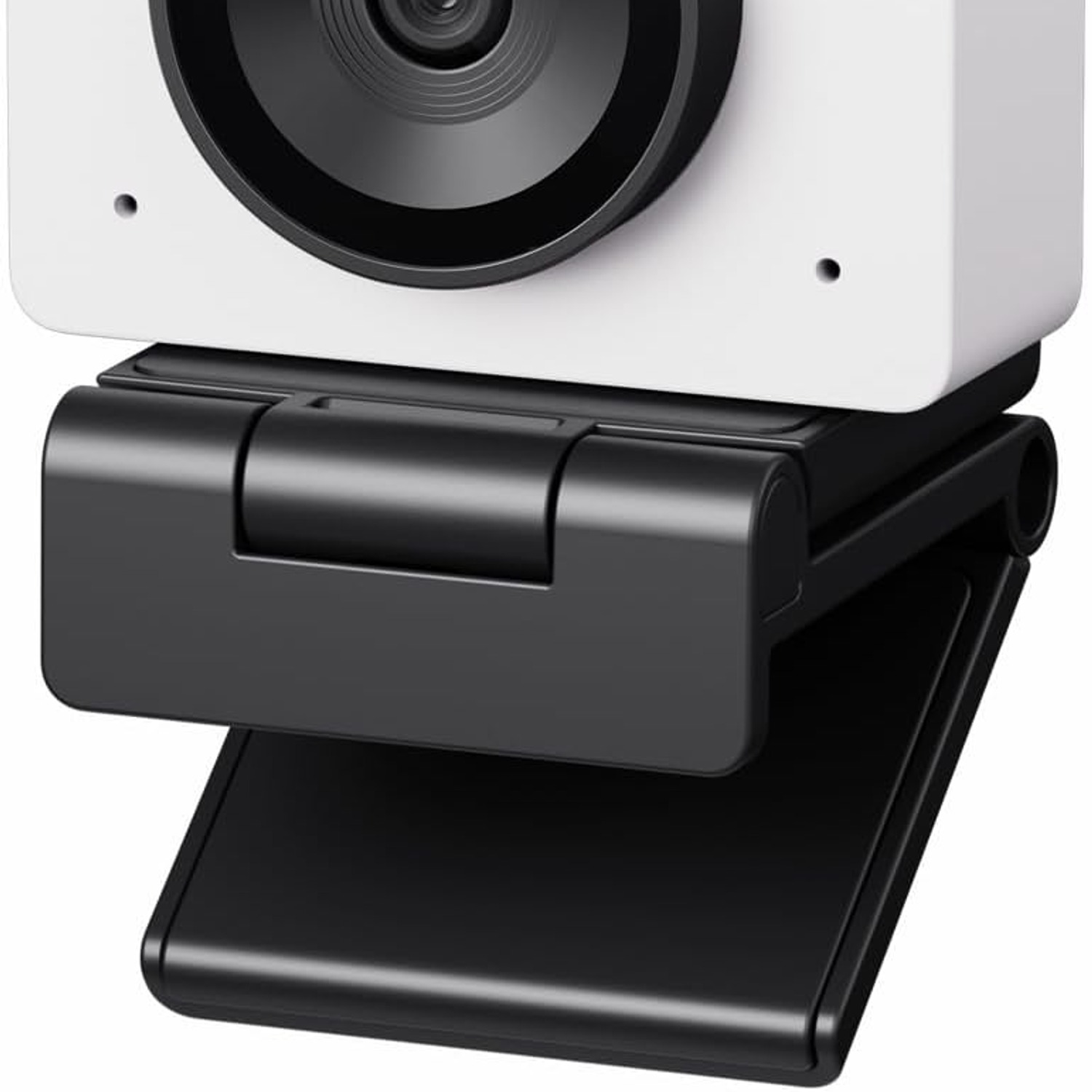
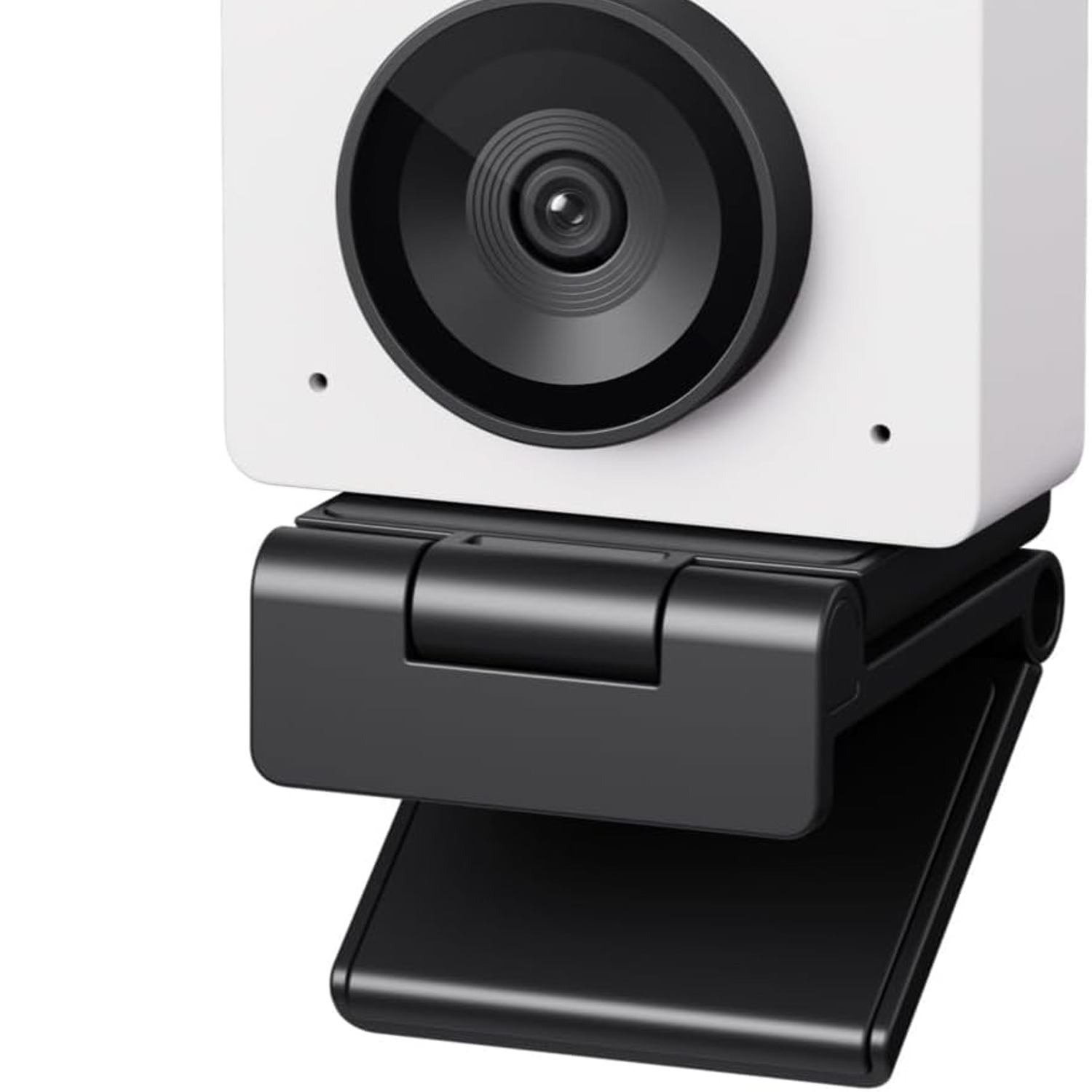
Think about where it will sit. At 33.2 grams this is a very light camera, so it perches on a laptop lid without tipping it and clips to a monitor easily. If you want it on a tripod or an arm, check the mounting arrangement first, because that detail is not listed by the maker.
Think about your connection. It is a USB camera, with no separate power supply. Plugging into a port on the computer itself is usually more reliable than going through an unpowered hub, especially at high frame rates.
Think about the rest of your audio and video chain. A good camera with poor sound still makes a poor call. Many people get more value from pairing this with a headset mic than from spending more on the camera.
And treat it as an indoor device. It is listed as not water resistant, so it belongs on a desk and in a bag, not on a bike handlebar in the rain.
Looking after it
Webcams are low maintenance, and almost all failures come down to two things: a scratched lens and a strained cable.
Clean the lens with a dry microfibre cloth, light pressure, small circles. Skip household sprays and paper towel. Fingerprints are the usual culprit behind a mysteriously hazy picture, and thirty seconds with a cloth often fixes what looks like a hardware fault.
Unplug by holding the connector, never by pulling the cable. Store the camera in a pouch or box so dust does not settle on the glass. Keep it away from heaters and direct sun on a windowsill.
The short version
The OBSBOT Meet SE is a small USB camera that fixes the two things built-in laptop cameras get wrong. It gives you a proper 1080p image at up to 100fps, so movement looks smooth, and it uses AI framing to keep you or your group composed without you touching anything.
Gesture control removes the need to break your flow to change a setting. Manual exposure lets you lock a consistent look. Digital zoom lets you tighten the shot from where you sit. At 33.2 grams in Cloud White it travels easily and looks neat on a desk.
Add decent lighting and a separate microphone, and you have a setup that looks considered rather than accidental. That is usually all anyone is really after.